
Secure Mode
Introduction to Secure Mode
Section titled “Introduction to Secure Mode”EasyTier introduced Secure Mode in version 2.6+, which enhances security in multiple scenarios, including End-to-End Encryption (E2EE), more secure handshake and key management, shared node identity verification, temporary credentials and tiered authorization, and more.
For upstream EasyTier’s description and usage instructions for Secure Mode, please refer to the EasyTier official website. QtEasyTier uses the latest EasyTier FFI as its backend. In version v3.2.0, we also introduced Secure Mode related settings so that you can configure Secure Mode through the QtEasyTier GUI.
A Simple Explanation of Secure Mode
Section titled “A Simple Explanation of Secure Mode”EasyTier is known for “decentralized networking”. In normal mode, every node joining the network is a peer node — the relationship between both sides is equal, and the handshake relies on the same network_name and network_secret. As long as one device has a public IP that can be directly connected, all devices can be added to the VPN network. This simple and straightforward networking method is very suitable for interconnecting personal home devices or playing games with friends, but it also makes it difficult to control device permissions — there is no way to effectively manage each device (such as restricting joins, controlling inbound/outbound traffic, etc.); a single node also cannot know whether the other nodes it has added are hijacked fake nodes.
In Secure Mode, nodes in the VPN are no longer fully equal peers. They are divided into formal nodes and temporary credential nodes (which can be understood as the Server and Client in traditional centralized networking). Each node has its own key pair for verifying the node’s validity, no longer relying on a single network_secret.
From the perspective of the configuration file, Secure Mode adds a secure mode toggle and a node key pair (public key and private key) compared to normal mode. An example TOML configuration file is as follows:
[secure_mode]enabled = truelocal_private_key = "<base64-private-key>"local_public_key = "<base64-public-key>"The enabled toggle is used to enable Secure Mode. Once enabled, the node will have the End-to-End Encryption (E2EE) and Noise protocol framework secure handshake capabilities mentioned above.
For formal nodes (which are actually the traditional peer nodes that require a network password), this key pair can be used to prove their identity. For example, when node A wants to connect to node B, it can bind node B’s public key. During the connection, the public key can be used to verify node B’s identity. When under a man-in-the-middle attack, since the fake server does not know node B’s private key, it cannot derive the public key for verification, so node A will refuse to connect to this fake server.
Formal nodes can also issue “temporary credentials”. A temporary credential contains some node permission information (validity period, whether data can be relayed, ACL groups, etc.) and a pair of temporary key pairs. Temporary credentials are propagated among formal nodes. When an instance needs to join the network as a temporary credential node, it needs to set its own private key to the private key in the credential issued by the formal node (the public key can be automatically derived). At this point, the role of this key pair is to let the formal node verify the identity of the temporary credential node, thereby allowing it to join the network. The identity of a temporary node is not equal to that of a formal node; it is restricted by the node permissions in the credential, and the formal node can also modify its permissions or revoke the credential (kick it out of the network).
Through the above key pair design, the shared node identity verification and temporary credential tiered authorization functions can be achieved.
Credential features require the entire link to support Secure Mode. Management nodes, temporary nodes, and formal nodes participating in propagating trusted information all need to be upgraded to versions supporting Secure Mode (EasyTier >= 2.6.0; QtEasyTier >= 3.2.0).
Enabling Secure Mode Between Formal Nodes
Section titled “Enabling Secure Mode Between Formal Nodes”Enabling Secure Mode on formal nodes can enhance security between nodes (end-to-end encryption, Noise protocol). The operation is very simple: directly toggle on “Enable Secure Mode” on the advanced settings page of the instance where you want to enable Secure Mode.
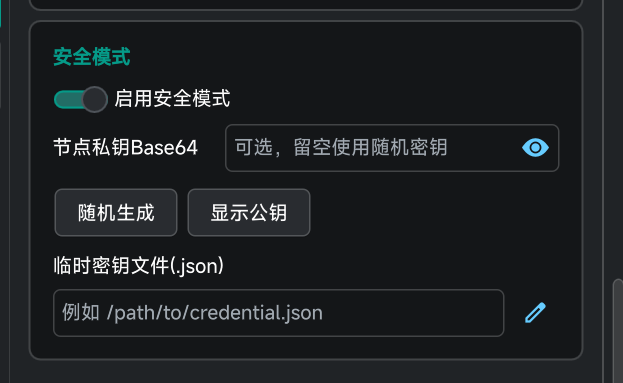
All subsequent operations require the Secure Mode toggle to be enabled
Verifying the Initial Node (Server) Identity
Section titled “Verifying the Initial Node (Server) Identity”On the Initial Node Side: Fixing the Key Pair
Section titled “On the Initial Node Side: Fixing the Key Pair”Secure Mode forces all nodes to have their own key pair. When the node private key Base64 input box in the above figure is empty, a new key pair will be automatically generated on every run. If you use a QtEasyTier instance as the initial node, you need to enter a fixed private key and store it properly. The private key entered must be the Base64 encoding of a private key generated using the X25519 algorithm. The most convenient way is to directly click “Random Generate” on the page shown in the following figure.
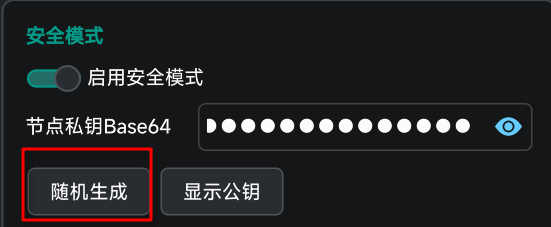
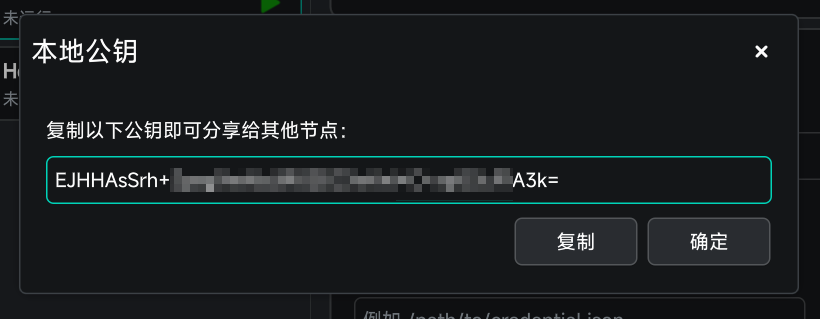
After generation, click “Show Public Key” to view and copy the node’s public key. This public key can be published so that other nodes can verify your identity.
On the Client Side: Setting the Node Public Key
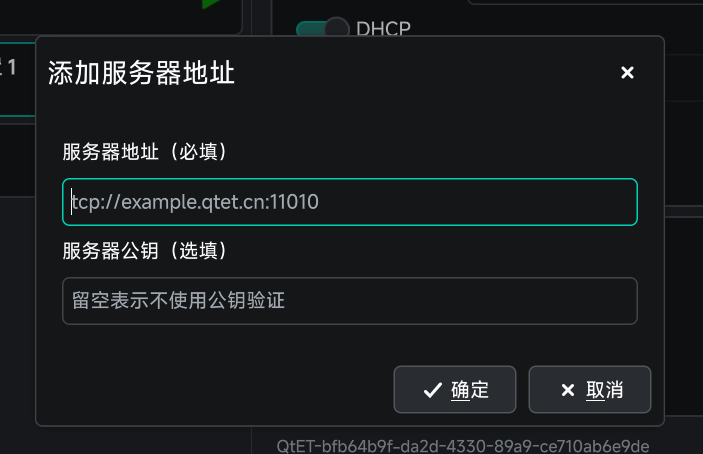
Section titled “On the Client Side: Setting the Node Public Key”On the add-initial-node page or the add-node page in the node favorites page, there is a node public key input box as shown in the following figure. If the initial node you are connecting to has Secure Mode enabled and you know its public key, you can enter the public key here to verify the initial node’s identity.
Joining the Network with Credentials
Section titled “Joining the Network with Credentials”This is one of the most practical features of Secure Mode. Formal nodes can issue short-term credentials for the network. Temporary devices can join with only the credential, without knowing the network password.
Managing Credentials on Formal Nodes
Section titled “Managing Credentials on Formal Nodes”1. Set the Credential Storage Address
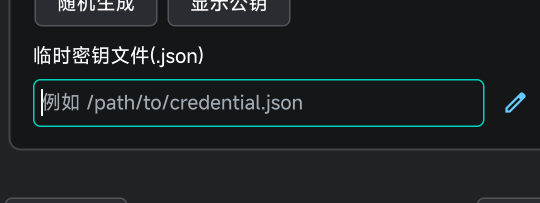
Section titled “1. Set the Credential Storage Address”Formal nodes do not set a credential storage address by default; temporary credentials only exist in memory and are not persisted, so they will be lost after a restart. Therefore, it is recommended that the formal node used for credential management set a credential storage address so that credentials can continue to be used after a restart. How to set it: enter or select a JSON file address on the secure mode settings page in the mesh advanced settings.
2. Managing Credentials
Section titled “2. Managing Credentials”You need to start the node instance before managing credentials, since credential management capability is provided through the EasyTier backend interface. When a node starts in Secure Mode, there will be a clickable Manage Temporary Node Keys button in the bottom-right corner of the instance running status page. Click it to enter the management page.
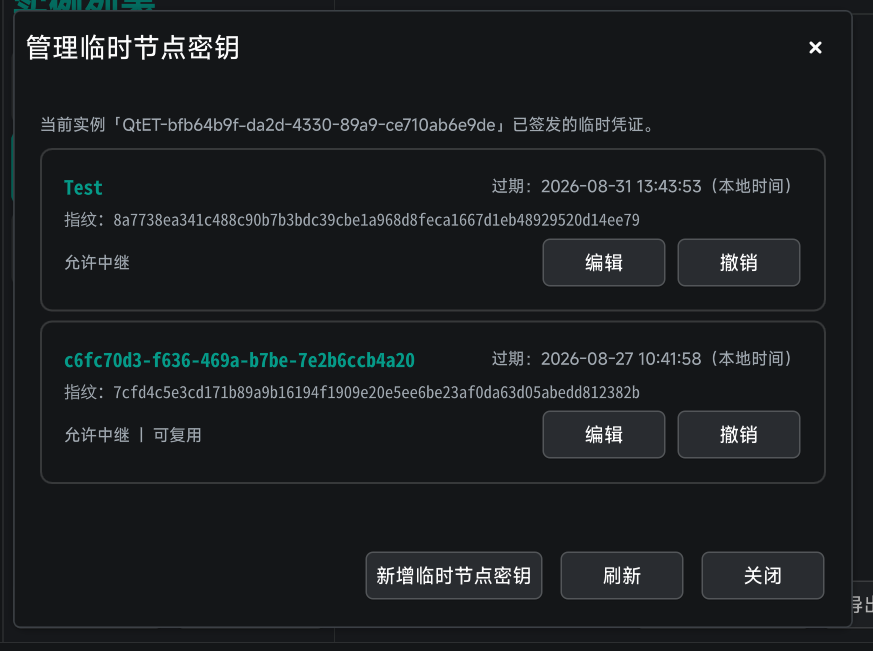
On the management page, you can see all credentials managed by the current node, as well as the detailed information of each credential. You can click the edit button to modify the credential’s validity period, whether data can be relayed, ACL groups, and other information. You can also click Add Temporary Node Key to create a temporary credential.
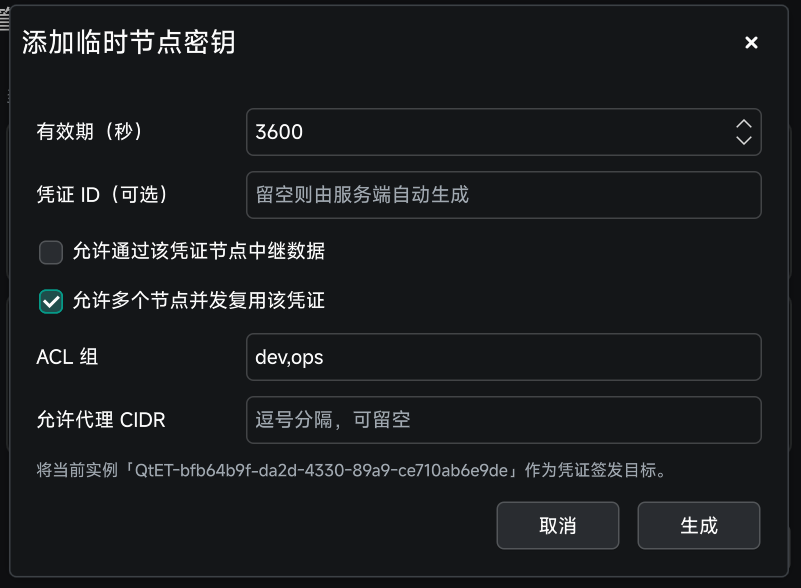
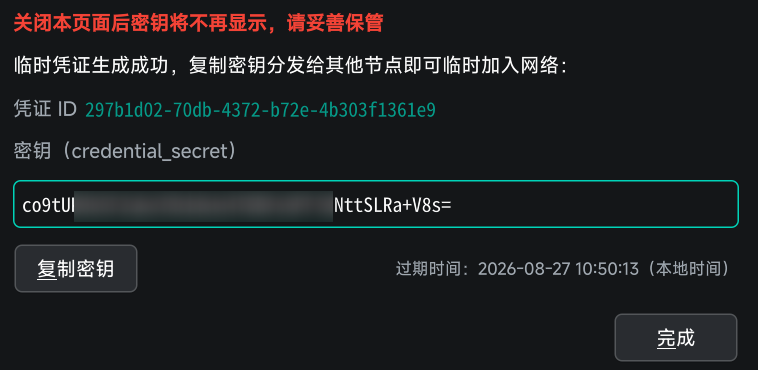
After creating a credential, a temporary node key pair will be automatically generated, and the private key will be displayed. You need to copy this private key and distribute it properly through trusted channels.
Temporary Nodes Joining the Network
Section titled “Temporary Nodes Joining the Network”When an instance needs to join the network as a temporary credential node, simply fill in the same network name (leave the network password empty), and enter the private key issued by the formal node in the “Node Private Key Base64” input box on the secure mode settings page to join the network.
Migration Suggestions
Section titled “Migration Suggestions”If you plan to migrate an existing network to Secure Mode, it is recommended to operate in the following order:
- First upgrade all nodes to stable versions supporting Secure Mode.
- Enable Secure Mode between formal nodes, keeping the original
network_secretunchanged (it is recommended to set a more complexnetwork_secret). - Fix the private key for the initial node (server), and gradually configure the node public key for clients.
- When there is a need for guest/temporary devices, introduce the credential mechanism to avoid spreading the master password.