
Quick Start
If this is your first time using this project and you have no prior experience with EasyTier tools, this section will help you get started quickly and set up your virtual network with ease.
Introduction to EasyTier Decentralized Networking
Section titled “Introduction to EasyTier Decentralized Networking”EasyTier networking is a decentralized network. Unlike traditional VPNs, EasyTier does not actually distinguish between clients and servers — all nodes are equal and can act as either a “client” or a “server”. EasyTier distinguishes different networks by the “network name” and “network password”. In a node, you need to set the network name and password for that node. After that, all peer nodes connecting to this node can form a network and obtain a virtual IP only when their network name and password match those of this node. Otherwise, the node only serves to forward data packets for other nodes and does not participate in the networking.
However, you will still see the word “server” in QtEasyTier. In fact, adding a server is adding a peer node that the current node will connect to first after startup (that peer node acts as the entry point of the network). After that, there are two cases:
-
- If the server (node)‘s network name and password match this node’s, then the server (node) will form a virtual LAN with this node, and other nodes connecting to that server (node) will also join this virtual LAN.
-
- If the server (node)‘s network name and password differ from this node’s, then the server (node) will not join the virtual LAN, but when another node joins the network with the same network name and password, the server (node) can help these two nodes (with the same network name and password) form a virtual LAN. (Provided the server node does not have private mode enabled)
ps: A node acting as a server should have a public IP address
Creating a Network Config
Section titled “Creating a Network Config”Setting the Network Name and Password
Section titled “Setting the Network Name and Password”As mentioned earlier, the network name and password are the basic unit of EasyTier networking. Every node needs to set a network name and password, and other nodes wanting to join the network also need to set the same network name and password.
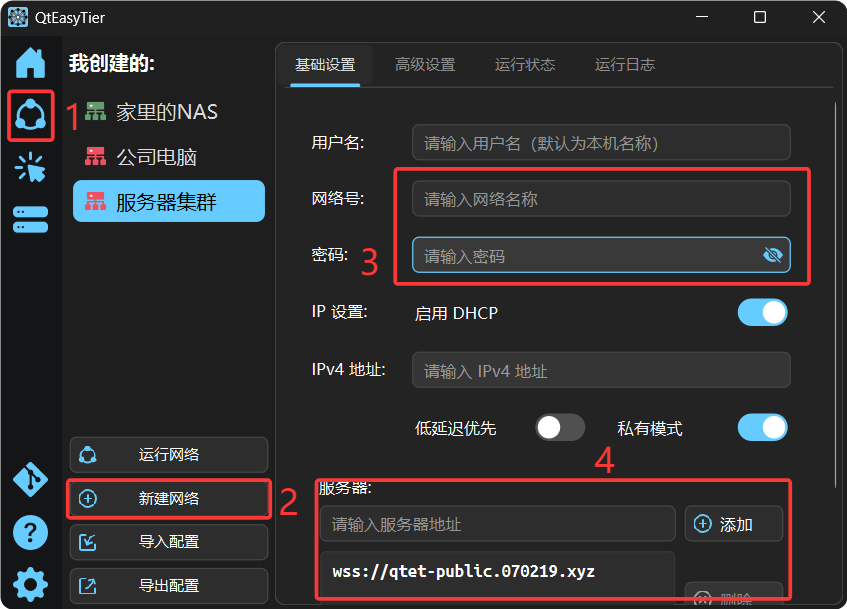
- Double-click the icon to open the app, click the sidebar to go to the “Network Config” page, and click the “New Config” button in the bottom-left corner to create a new network configuration.
- In the network configuration window, enter basic information such as the username (optional; defaults to the hostname), network name, password, etc.
Adding Initial Nodes (Server)
Section titled “Adding Initial Nodes (Server)”When this machine acts as a “client” and wants to join a network, you need to add the server node address.
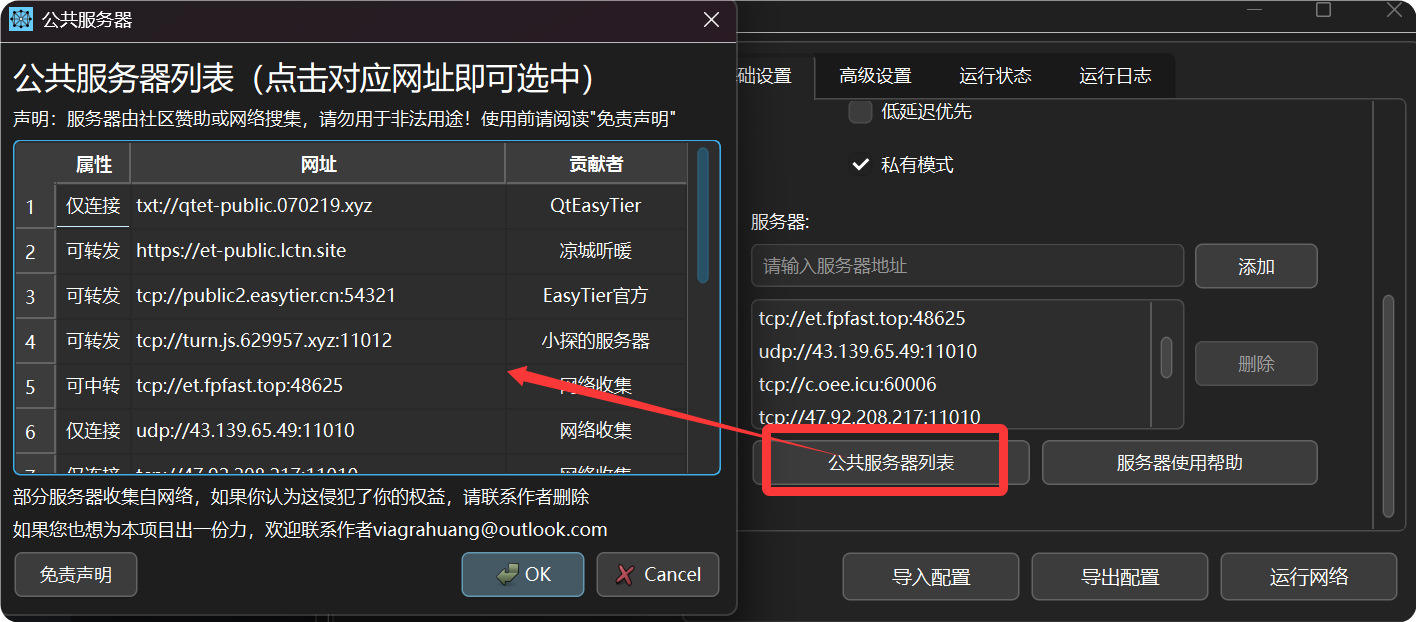
- For addresses you use frequently, you can add them to the favorites list on the Node Favorites page. On the network config page, click Import from Favorites to view the favorited node addresses. In addition, this page may also have some public nodes pre-configured that were collected from the internet — availability is not guaranteed.
- Click the “Add Server Address” button and enter the node address (format:
protocol://address:port; supported protocols are tcp/udp/ws/wss/wg). Server Public Key is an optional security mode setting, which we won’t cover here. - For more information about deploying your own server node, see the Server Guide.
- After that, you can click the “Run Network” button to start the network connection. The running status window will display the list of nodes that have joined the network.
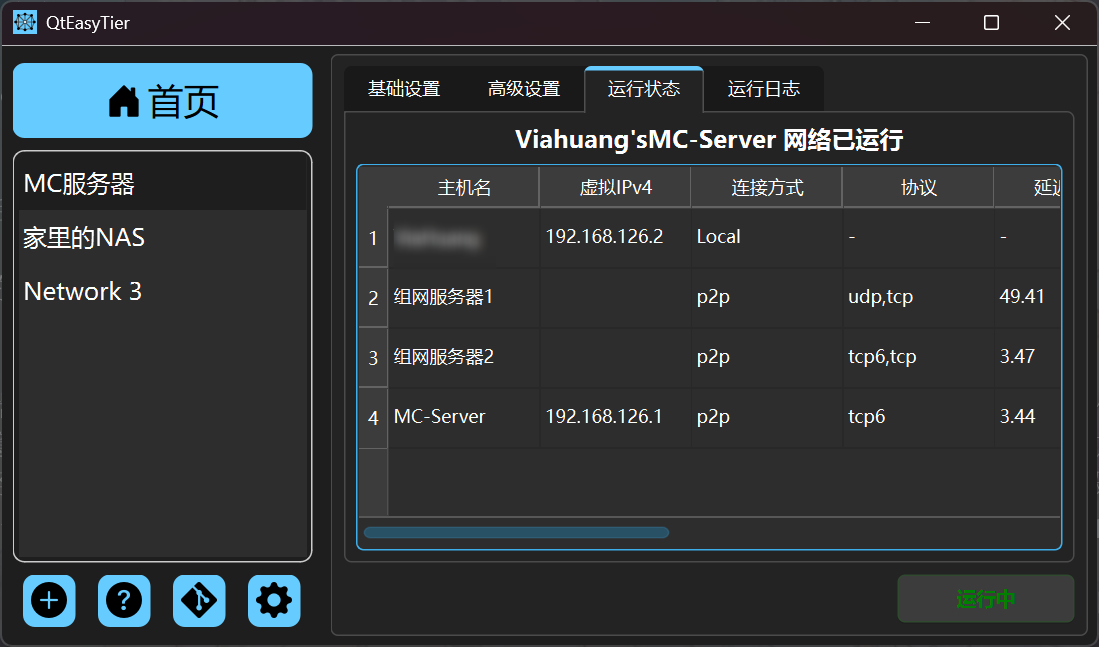
- If errors occur, check the running log window for troubleshooting and resolution.
- Additionally, QtEasyTier allows you to create multiple network configurations. Each configuration can run independently without interfering with others. Once you learn more about EasyTier, you can customize network configurations on the advanced settings page to achieve more functionality.
Auto-Start & Auto-Connect
Section titled “Auto-Start & Auto-Connect”- If your network configuration needs to stay online long-term, it is recommended to enable auto-start in the settings page and turn on auto-reconnect so the network joins automatically after boot.
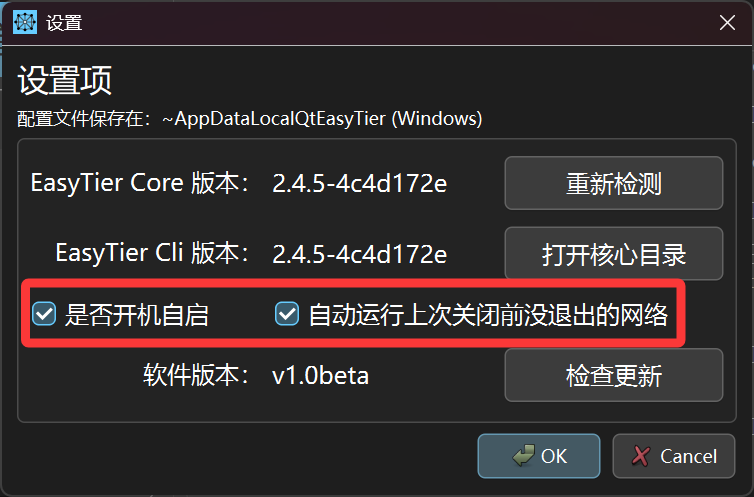
- After enabling auto-reconnect, the Daemon will remember the network configurations that were not exited before the last shutdown, and will automatically try to connect to them at the next startup. Additionally, when auto-start is enabled, QtEasyTier runs in the background. Find the QtEasyTier icon in the system tray, right-click and select “Show Main Window” to view the running status.