
Deploy a Personal Server
If you find public nodes less than satisfactory, consider deploying your own personal server node.
Prerequisites:
Section titled “Prerequisites:”- A server (computer) with an accessible public IP port. EasyTier has very low resource overhead and hardly affects normal server operation.
Deploying on a Windows Server (with GUI)
Section titled “Deploying on a Windows Server (with GUI)”As mentioned earlier, EasyTier does not distinguish between server and client. Therefore, on a server with a graphical interface, you can directly use QtEasyTier to deploy an EasyTier server.
A node acting as a “personal server” should have the following characteristics:
- Reachable by other devices on your network and capable of relaying traffic.
- Not reachable by other people’s networks — for your own use only.
- (Optional) No virtual IP address assigned, effectively not participating in the virtual network.
Following this approach, we can easily configure a “server” node that meets the requirements.
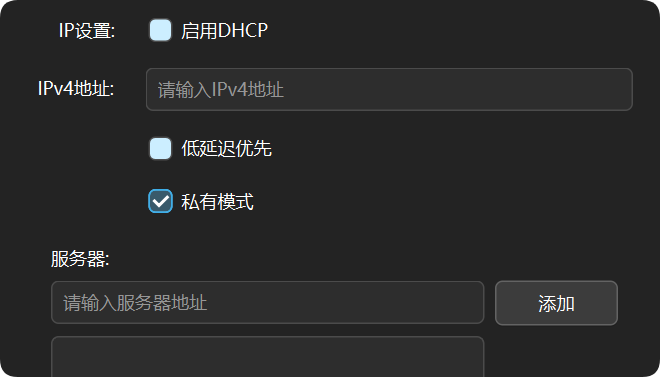
- Enable private mode and set the corresponding network name and password, so only devices using the same network name and password can connect to this node — satisfying conditions 1 and 2.
- (Optional) In basic settings, turn off DHCP and do not assign an IP address, so no virtual IP is allocated to this node at runtime — satisfying condition 3.
- Since it has a direct public connection and does not participate in the virtual network, most advanced settings are irrelevant and can be left at their default values.
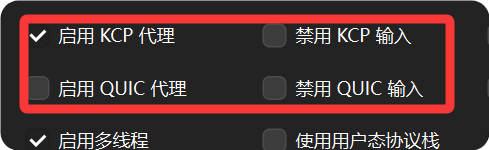
- However, the KCP and QUIC switches can be toggled as needed — they determine whether the server accepts traffic over KCP/QUIC protocols.
- Choose an unused port in the listening port field, such as 11010, and enter the address in the following format:
protocol://0.0.0.0:portThe protocol can be
tcp,udp,ws(WebSocket),wss(WebSocket over TLS), orwg(WireGuard). Choose based on your actual situation. If you’re unsure, keeping the defaults of tcp and udp is fine.
Once all the above settings are configured, click “Start” to run the “server” node. Others can then connect to this node using the server’s public IP + port.
Deploying on a Linux Server (without GUI)
Section titled “Deploying on a Linux Server (without GUI)”The method described here involves directly downloading the official EasyTier binary and deploying via a configuration file, rather than using Docker.
This section uses Ubuntu 24.04.3 LTS as an example.
Downloading the EasyTier CLI (easytier-core)
Section titled “Downloading the EasyTier CLI (easytier-core)”In the text below,
*represents an arbitrary filename, and**represents a different arbitrary filename.
- One-click install script
2.1. EasyTier Community Edition
wget -O /tmp/installer.sh "https://gitee.com/zyflypzlc/warehouse/raw/master/easytier_installer/installer.sh" && sudo bash /tmp/installer.shThe community edition script does not include public servers in the generated config file. Please add them manually if needed.
2.2. EasyTier Official Script (currently only supports installing 2.4.5 stable)
Note: The official one-click script requires unzip to be installed first.
# Install unzipsudo apt update && sudo apt install unzip# One-click install scriptwget -O /tmp/easytier.sh "https://raw.githubusercontent.com/EasyTier/EasyTier/main/script/install.sh" && sudo bash /tmp/easytier.sh install --gh-proxy https://ghfast.top/2.3. After Script Execution
Once the script completes successfully, the EasyTier binaries will be installed in /opt/easytier, with configuration files located at /opt/easytier/config/*.conf.
EasyTier will be registered as a system service. You can manage it with the following commands:systemctl start easytier # Startsystemctl stop easytier # Stopsystemctl status easytier # Check statussystemctl restart easytier # RestartFor the official script, replace
easytierwitheasytier@config-filenamein management commands. It is not recommended to manually change the GitHub acceleration link in the one-click install script!
If the install script fails, delete the/opt/easytierfolder before retrying!
Manually Download the CLI
This section has been largely superseded by the community auto-install script and is kept only as a reference for troubleshooting script installation failures.
- Download the appropriate easytier CLI version for your hardware architecture from the EasyTier download page.
For example, for a 64-bit AMD/Intel processor, choose
easytier-linux-x86_64-v2.5.0.zip.
- (Optional) Prefix the EasyTier download link with the GitHub acceleration URL: https://gh-proxy.org/ to form an accelerated download link:
https://gh-proxy.org/https://github.com/EasyTier/EasyTier/releases/download/v2.5.0/easytier-linux-x86_64-v2.5.0.zipYou can also use curl to download:
# Install curl (Debian/Ubuntu)sudo apt update && sudo apt install curl# Download easytier archive to /tmpcurl -L https://gh-proxy.org/https://github.com/EasyTier/EasyTier/releases/download/v2.5.0/easytier-linux-x86_64-v2.5.0.zip -o /tmp/easytier_tmp_install.zip- Extract the archive and move the binary to
/opt/easytier
# Install unzipsudo apt update && sudo apt install unzip# Extract to /opt/easytierunzip -o /tmp/easytier_tmp_install.zip -d /opt/easytier# Move binary files to /opt/easytiermv /opt/easytier/easytier-linux-x86_64/* /opt/easytier/- (Optional) Create config directory and remove empty folder
mkdir /opt/easytier/configrm -rf /opt/easytier/easytier-linux-x86_64/- Set execution permissions
sudo chmod +x /opt/easytier/easytier-core /opt/easytier/easytier-cli- Check the easytier-core version to verify installation:
/opt/easytier/easytier-core --version- (Optional) Install Shell Auto-Completion
# Fish auto-completion easytier-core --gen-autocomplete fish > ~/.config/fish/completions/easytier-core.fish easytier-cli gen-autocomplete fish > ~/.config/fish/completions/easytier-core.fishGenerating a Configuration File
Section titled “Generating a Configuration File”Next, write a TOML configuration file according to the EasyTier config format.
- If you installed EasyTier using the one-click script, you can directly modify the
/opt/easytier/config/*.confconfig file.- You can also copy an existing
*.confand create a new**.confin the same directory to modify. - It is recommended that script-installed ET use the config generator-generated config with caution, as there is a risk of config loading errors!
- You can also copy an existing
- For manually downloaded ET, place the config file in a directory of your choice, preferably near the easytier-core binary.
- Config files can be generated using the Config Generator.
Temporary config generator: https://etgen.myqfeng.top/
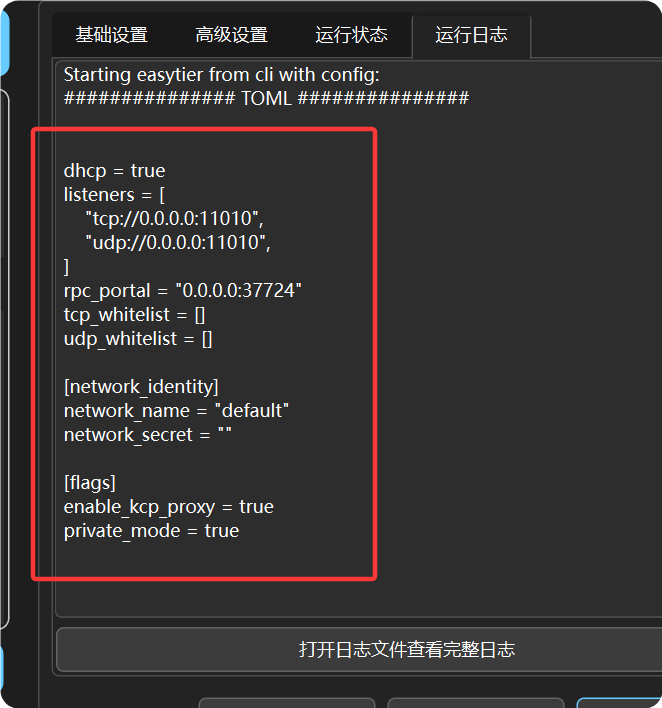
- If the config generator is unavailable, you can also create a virtual network in QtEasyTier, configure it using the GUI steps, click “Run” once, then find the config content in the logs as shown in the screenshot below.
- Here is a usable config file example:
hostname = "MingYueQingFeng"   # Node name, customizabledhcp = falselisteners = [    "tcp://0.0.0.0:11010",    "udp://0.0.0.0:11010",] # Listening ports, customizable
[network_identity]network_name = "your-network-name"network_secret = "your-network-key"
[flags]latency_first = true   # Low-latency modeprivate_mode = true    # Private mode
Starting the EasyTier Node
Section titled “Starting the EasyTier Node”For ET installed via one-click script, use the following commands to start the EasyTier node:
systemctl start easytier # Community Editionsystemctl start easytier@default # Official EditionFor ET using a custom **.conf config file, use the following commands:
# Stop the node running with the default configsystemctl disable easytier@* && systemctl stop easytier@*# Enable and start the node with the custom config filesystemctl enable easytier@** && systemctl start easytier@**For manually installed core, use the following command to start the EasyTier node:
./easytier-core -c /path/to/your/config.toml# Launch with multiple config files./easytier-core -c /path/to/your/config1.toml -c /path/to/your/config2.tomlWhen launching with multiple config files, each config’s listening port and RPC port must use different ports from other simultaneously launched configs!
However, once you close the terminal, EasyTier will be killed. Therefore, we need to register it as a system service so it can keep running.
This example uses a Linux system with systemctl.
- Create a systemd service file
sudo nano /etc/systemd/system/easytier.service- Edit the service file
[Unit]Description=EasyTier Service# Ensure the network is fully online before startingAfter=network.target network-online.target syslog.target# Explicitly require network onlineWants=network.target network-online.target
[Service]Type=simpleExecStart=/path/to/your/easytier-core -c /path/to/your/config.tomlRestart=alwaysRestartSec=3sStartLimitIntervalSec=0
[Install]WantedBy=multi-user.target- Set permissions and load the service
- Save and exit the editor, then run the following to reload systemd service configuration:
sudo systemctl daemon-reload- Enable the service to start automatically on boot:
sudo systemctl enable easytier- Start the service:
sudo systemctl start easytier- You can check service status and logs with:
systemctl status easytierjournalctl -u easytierAt this point, if nothing went wrong, the EasyTier server node should be up and running.